Project delays, missed deadlines, and scattered communication.
That’s what happens when your team is using the wrong project management tool.
According to a report by Wellingtone, only 34% of companies report completing projects “mostly or always” on time and on budget.
Project management tools can help—because for PMP professionals, staying organized is only part of the job. You also need visibility, accountability, and a system that helps work move without adding more confusion.
But if you’re here, you already know finding the right fit is easier said than done.
I looked at the top project management tools PMP pros use to see which ones are easiest to manage, which hold up under pressure, and which are not worth the hassle. Let’s dive in.
The Best Tools at a Glance
- Best Overall: Monday.com
- Best for All-in-One Control: ClickUp
- Best for Enterprise Teams: Wrike
- Best for Clean Simplicity: Asana
- Best for Agile Workflows: Jira
- Best for Client Work: Teamwork
- Best for Budget-Friendly Plans: Zoho Projects
- Best Spreadsheet-Style Management: Smartsheet
- Best for Large Organizations: Adobe Workfront
- Best for Simple Teams: ProofHub
| Top Project Management Tools Comparison Chart | ||
 |
| LEARN MORE |
 |
| LEARN MORE |
 |
| LEARN MORE |
 |
| LEARN MORE |
 |
| LEARN MORE |
Monday.com: Best Overall

Monday.com is probably the easiest one here to look at and instantly understand. The whole setup is very row- and column-based, so if you like seeing everything laid out in front of you, it works. You can tell who owns a task, where it stands, and when it’s due at a glance—no extra “click for details” necessary.
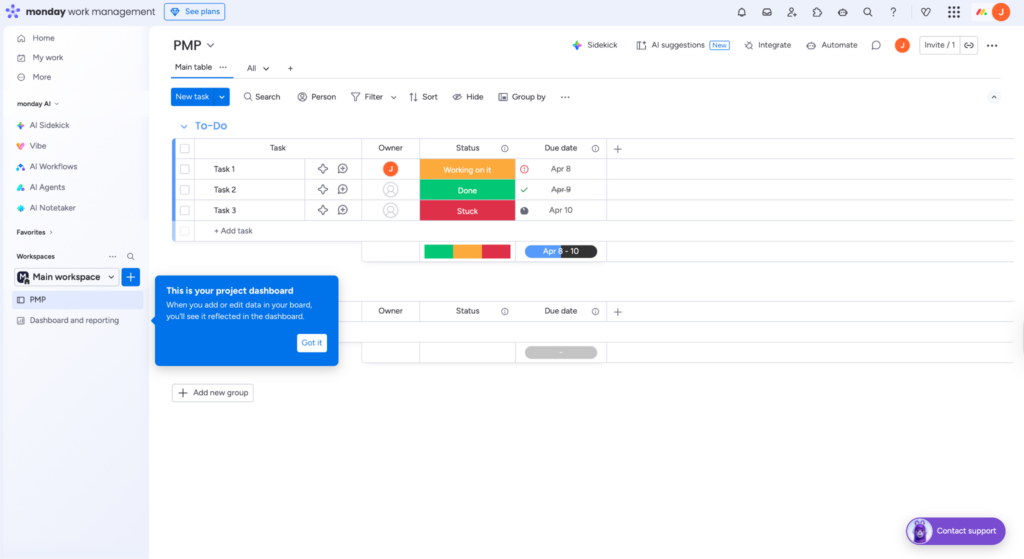
What I liked most is that it doesn’t make basic project tracking feel harder than it needs to be. If someone on your team is behind, stuck, or done, you can usually catch it fast just from the board view and dashboard widgets. It’s also one of the few tools that feels polished without feeling confusing. The issue is that it can feel lean once you need more detailed planning. It handles visibility really well, but not every team just needs visibility. If your projects are more about staying organized and keeping people aligned, it makes sense. If you need deeper control, you may want more.
Course Ratings Table
| Feature | Rating |
|---|---|
| Ease of Use | 9.8 |
| Planning & Scheduling | 9.2 |
| Workflow Customization | 9.5 |
| Team Collaboration | 9.4 |
| Resource Management | 8.9 |
| Reporting & Dashboards | 9.3 |
| Integrations | 9.2 |
| Admin & Scalability | 9.1 |
| Overall Value | 9.8 |
Package Options
- Free: Up to 2 seats, 3 boards, 3 docs, 200+ templates, and 8 column types.
→ Best for solo users or pairs testing monday.com for basic task tracking. - Basic: Unlimited items, unlimited free viewers, 5GB storage, and a dashboard based on 1 board.
→ Best for small teams tracking shared work. - Standard: Adds timeline and Gantt views, calendar view, guest access, automations, integrations, and dashboards based on 5 boards.
→ Best for teams planning deadlines across multiple projects. - Pro: Adds private boards, chart view, time tracking, formula column, dependency column, and dashboards based on 10 boards.
→ Best for teams with more detailed planning and reporting needs. - Enterprise: Adds enterprise-scale automations and integrations, multi-level permissions, advanced reporting, and stronger security controls.
→ Best for large companies needing tighter control.
Package Perks
- Custom task boards
- Owner column
- Status labels
- Due date column
- Search, filter, and sort tools
- Group by controls
- Dashboard widgets
- Timeline view
- Gantt view
- Calendar view
- Time tracking
- Integrations and automations
Pros
✅ Easy To Read: I could tell pretty quickly who owns what, what is behind, and what still needs attention.
✅ Great For Team Visibility: The board setup makes it easy to catch stalled work without chasing people down for updates.
✅ Useful Dashboards: I could track overdue tasks, due dates, and workload without needing a separate reporting tool.
✅ Low Learning Curve: It feels more approachable than a lot of PM tools that throw too much at you upfront.
✅ Good Balance of Structure and Simplicity: It gave me enough organization for real projects without feeling too technical.
Cons
❌ Advanced Planning Costs More: Some of the features that make it stronger for PM work sit on higher plans.
Bottom Line: Should You Choose Monday.com?
Monday.com is one of the strongest options here. It was polished, easy to manage, and actually pleasant to use day to day. It made my project tracking feel clear and fast, which is a huge plus for busy teams. The main downside is that some of its better planning features cost more than budget-friendly tools. Still, for most teams, it strikes a really good balance between ease, structure, and visibility.
Monday.com
ClickUp: Best for All-in-One Control

ClickUp gave me a lot more depth to work with than a simpler tool. Once I got into it, I had access to Spaces, Folders, Lists, tasks, docs, dashboards, goals, forms, custom fields, automations, time tracking, and workload views all in one system. That mattered because it let me keep planning, execution, reporting, and documentation closer together instead of splitting them across different tools. I also liked being able to look at the same project in different ways, whether that was List, Board, Calendar, Gantt, or Timeline.
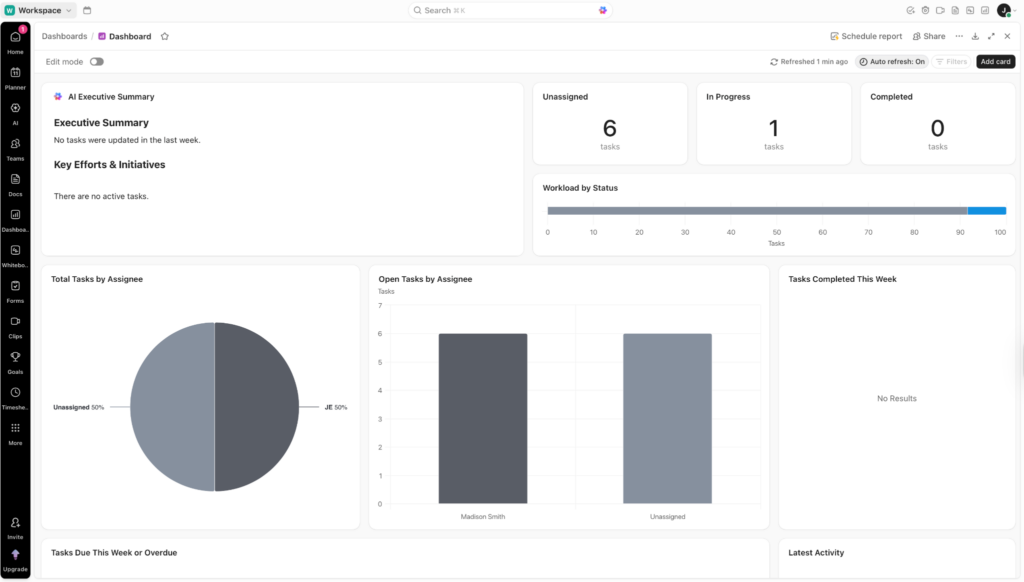
The quality felt strong in terms of capability. It did not come off limited or stripped down. The issue was more usability. It took longer to feel comfortable in than Monday.com, and I do think that matters for PMP pros trying to get a whole team using it. ClickUp is better when you want deeper control, but not when you want instant clarity.
Course Ratings Table
| Feature | Rating |
|---|---|
| Ease of Use | 9.5 |
| Planning & Scheduling | 9.4 |
| Workflow Customization | 10.0 |
| Team Collaboration | 9.2 |
| Resource Management | 9.1 |
| Reporting & Dashboards | 9.2 |
| Integrations | 9.1 |
| Admin & Scalability | 9.0 |
| Overall Value | 9.6 |
Package Options
- Free Forever: Unlimited tasks, unlimited free plan members, and 60MB storage.
→ Best for testing the platform before moving real project work into it. - Unlimited: Adds unlimited storage, ClickUp Chat, and native time tracking.
→ Best for smaller teams that want one place for planning, tracking, and team coordination. - Business: Adds Google SSO, custom exporting, and 5,000 monthly automations.
→ Best for teams running heavier workflows that need more reporting and process control. - Enterprise: Custom pricing with advanced security and enterprise support.
→ Best for larger organizations with stricter admin and governance needs.
Package Perks
- Task dependencies
- Gantt view
- Workload view
- Time tracking
- Resource planning
- Docs
- Forms
- Dashboards
- Goals
- Automations
- Custom fields
- Guest access
Pros
✅ Better For Detailed Planning: Dependencies, Gantt charts, and workload tools make it easier to manage projects with real sequencing and resourcing needs.
✅ Docs Stay Tied To The Work: Project plans, requirements, and notes can live inside the same system instead of sitting somewhere separate.
✅ Strong Intake And Reporting Tools: Forms, dashboards, and custom fields help if you need to manage incoming work and track project health closely.
✅ More Built In: Time tracking, goals, automations, and multiple views cut down on how many outside tools you need.
Cons
❌ Takes More Setup: There is a lot to configure, so it is not the kind of tool most teams will feel comfortable with right away.
❌ Can Feel Like Too Much: If your team mainly needs simple visibility and quick updates, this may feel heavier than necessary.
Bottom Line: Should You Choose ClickUp?
ClickUp fits teams that need more control over planning, tracking, and project structure than a simpler tool can give. It is especially useful if you want dependencies, docs, dashboards, forms, workload planning, and time tracking in one place. The downside is that it asks more from you at the start. If your team wants depth and can handle a steeper setup, it is a strong second choice.
ClickUp
Wrike: Best for Enterprise Teams

Wrike feels more like a control center than a simple project tracker. It makes the most sense for teams with many people involved and greater pressure to keep work standardized. This one leans harder into process. You’re getting interactive Gantt charts, request intake, dashboards, templated workflows, stronger reporting, and later-plan tools for resource planning, capacity planning, and budgeting. That makes it easier to manage project flow at a higher level, especially if work is coming in from different teams and needs to be routed, tracked, and reported on cleanly.
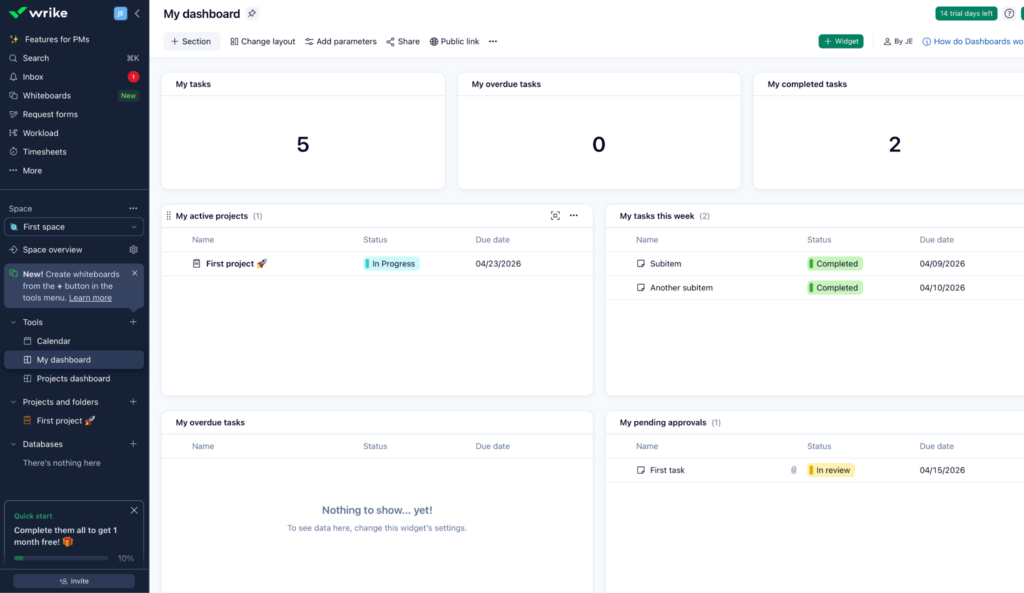
What I liked is that it feels more built for oversight than casual collaboration. My issue is that it also feels more corporate and less natural right away. If your team wants something more flexible or easier to settle into, this may feel stiff.
Course Ratings Table
| Feature | Rating |
|---|---|
| Ease of Use | 9.2 |
| Planning & Scheduling | 9.3 |
| Workflow Customization | 9.2 |
| Team Collaboration | 9.0 |
| Resource Management | 9.2 |
| Reporting & Dashboards | 9.3 |
| Integrations | 9.1 |
| Admin & Scalability | 9.2 |
| Overall Value | 9.4 |
Package Options
- Free: Project and task management, board view, and table view.
→ Best for basic task tracking. - Team: AI Essentials, shareable dashboards, and interactive Gantt charts.
→ Best for smaller teams that need timeline planning. - Business: Templatized workflows and standard integrations.
→ Best for teams running more repeatable processes. - Pinnacle: Advanced resource planning, capacity planning, budgeting, and advanced reporting.
→ Best for teams managing heavier delivery and staffing needs. - Apex: Unlimited whiteboards plus stronger integrations, automations, and two-way syncs.
→ Best for enterprises connecting Wrike to larger systems.
Package Perks
- Interactive Gantt charts
- Request intake
- Shareable dashboards
- Workflow templates
- Standard integrations
- Resource planning
- Capacity planning
- Budget tracking
- Advanced reporting
- Whiteboards
- Two-way sync
- Automations
- Time tracking
Pros
✅ Process Control: It makes more sense for teams that need work routed, tracked, and standardized.
✅ Strong For PMO-Style Work: Project planning, budgeting, and reporting make it feel more serious than a lighter team tool.
✅ Cross-Functional Intake: It handles incoming work and workflow structure better than tools that mainly focus on task boards.
✅ More Built For Oversight: This one is stronger when leadership needs visibility into delivery, staffing, and progress.
Cons
❌ Feels More Corporate: It is not the kind of tool that feels instantly easy or relaxed.
❌ Less Friendly For Small Teams: If your team just wants to assign work and move on, this can feel like too much.
Bottom Line: Should You Choose Wrike?
Wrike fits teams that need stronger oversight, cleaner process control, and more formal project tracking. It makes more sense for PMO-style work, cross-functional intake, and projects where staffing, timelines, and reporting matter a lot. The trade-off is that it felt a lot stiffer and more platform-heavy than the easier tools I’ve tested. If you want structure first and friendliness second, this is a better fit.
Wrike
Asana: Best for Clean Cross-Team Planning

Asana works best when the problem is not “how do I build the deepest project system possible,” but “how do I keep a lot of teams moving in the same direction without everything turning messy.” Its biggest strength is cross-team coordination. A task can live in multiple projects at once, so the same launch, request, or deliverable can remain visible to different teams without being recreated over and over. That’s a real difference from tools that feel more like one team’s workspace at a time.
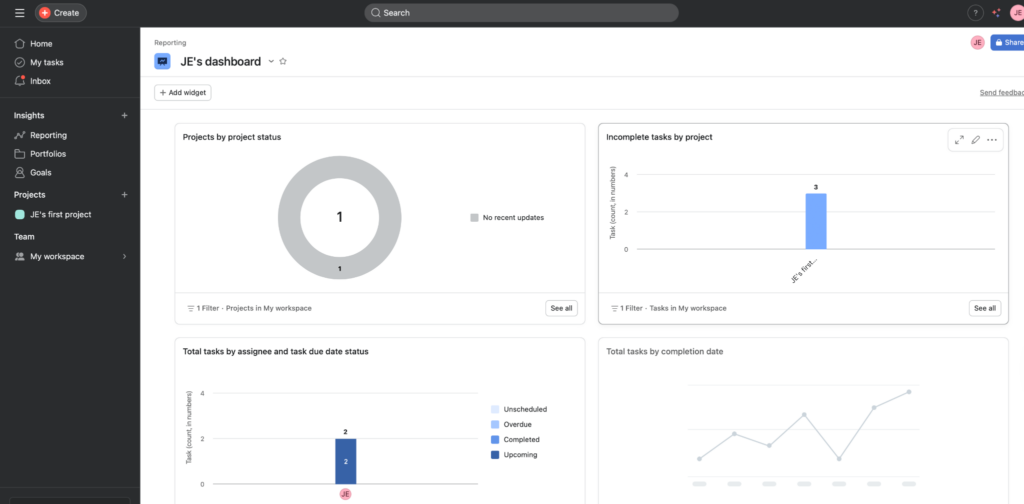
It also does a nice job connecting project work to goals, portfolios, dashboards, and status updates, so it feels more organized at the business level than a basic task tool. I do wish it had more built-in depth and control in one place, the way ClickUp does. But if your main problem is alignment across teams, Asana is easy to like.
Course Ratings Table
| Feature | Rating |
|---|---|
| Ease of Use | 9.1 |
| Planning & Scheduling | 9.0 |
| Workflow Customization | 8.9 |
| Team Collaboration | 9.2 |
| Resource Management | 8.7 |
| Reporting & Dashboards | 9.0 |
| Integrations | 9.0 |
| Admin & Scalability | 8.8 |
| Overall Value | 9.1 |
Package Options
- Personal: Basic task tracking for up to 2 users.
→ Best for very small teams. - Starter: Adds timeline, Gantt, dashboards, forms, rules, and custom fields.
→ Best for teams that need a stronger project structure. - Advanced: Adds goals, portfolios, workload, approvals, and native time tracking.
→ Best for teams managing multiple projects across departments. - Enterprise: Adds capacity planning and stronger admin controls.
→ Best for larger organizations standardizing work.
Package Perks
- Multi-homing tasks across projects
- Timeline and Gantt views
- Portfolios
- Goals
- Project dashboards
- Status updates
- Forms
- Workflow builder
- Unlimited rules
- Approvals
- Proofing
- Native time tracking
Pros
✅ Best For Cross-Team Visibility: The same task can show up in multiple projects, which is genuinely helpful when work touches more than one team.
✅ Cleaner Than Heavier Tools: It gives you structure without feeling as layered or setup-heavy as ClickUp.
✅ Strong Goal Alignment: Goals, portfolios, and dashboards make it easier to connect daily work to bigger priorities.
✅ Easy To Share Progress: Status updates and dashboards make stakeholder reporting feel less manual.
Cons
❌ Not As Deep As ClickUp: If you want a more packed all-in-one system, Asana can feel lighter.
❌ Better Features Sit Higher Up: Workload, native time tracking, and some of the stronger PM tools are not lower-tier.
❌ Less Flexible For Custom Builds: It is more structured out of the box, which is good for some teams but limiting for others.
Bottom Line: Should You Choose Asana?
Asana makes the most sense for teams that struggle more with coordination than complexity. It was good when the same work needs to stay visible across departments, projects, and leadership views without turning into duplicate chaos. It does not have the same packed-in feel as ClickUp, but that is also part of why it stays cleaner. If your team needs strong alignment, clearer visibility, and less friction across projects, Asana is a really smart pick.
Asana
Jira Software (Atlassian): Best for Agile and Technical Teams

One thing I look for in a PMP-style workflow is whether a tool can keep up when timelines shift, dependencies move, and priorities need to be changed, and Jira is built for that kind of work. The backlog is one of its most useful features because it gives you a clear way to see what is next, what is blocked, and what needs to move as plans change.
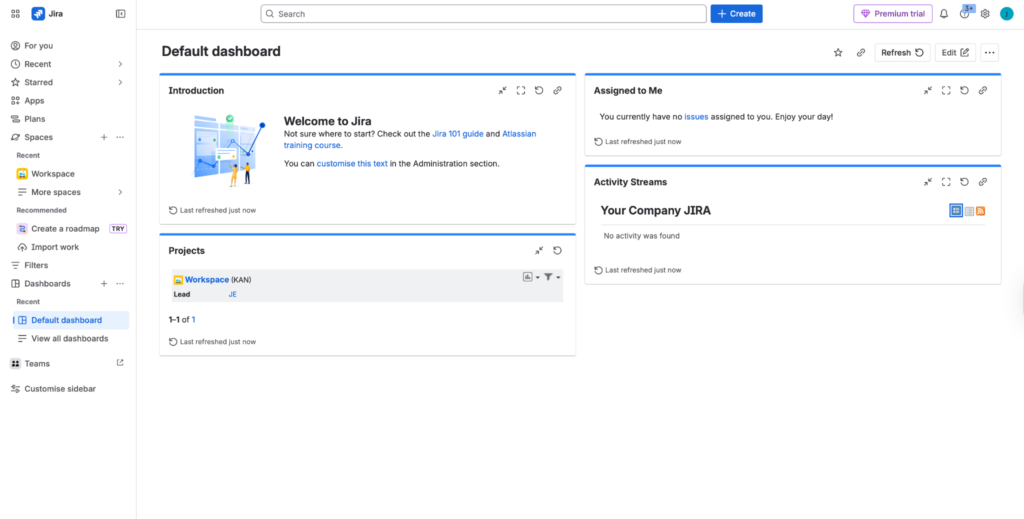
Jira stands out more for delivery control than clean design. The backlog, board, and stronger dependency planning make it a better fit for Agile, iterative, or multi-phase projects where sequencing changes often. If your projects are more straightforward, though, Monday.com may be easier to manage and easier for teams to follow day to day. It works best for PMPs managing fast-moving workstreams that need tighter control and more structure as work moves from stage to stage.
Course Ratings Table
| Feature | Rating |
|---|---|
| Ease of Use | 8.8 |
| Planning & Scheduling | 9.1 |
| Workflow Customization | 9.0 |
| Team Collaboration | 8.6 |
| Resource Management | 8.4 |
| Reporting & Dashboards | 8.8 |
| Integrations | 9.2 |
| Admin & Scalability | 9.0 |
| Overall Value | 8.9 |
Package Options
- Free: Unlimited goals, projects, tasks, and forms.
→ Best for small teams testing Jira. - Standard: Adds AI, permissions, external collaboration, and more automation.
→ Best for teams that need stronger daily control. - Premium: Adds cross-team planning, approvals, and cross-project dependencies.
→ Best for teams managing more complex delivery. - Enterprise: Adds advanced analytics, stronger security, and unlimited automation.
→ Best for large organizations with stricter admin needs.
Package Perks
- Backlog view
- Board view
- Timeline view
- Calendar view
- Summary view
- Reports and dashboards
- Custom workflows
- Project templates
- Dependency management
- Approvals
- Automation rules
- 3,500+ integrations
Pros
✅ Best for Agile Work: It handles backlogs, boards, and changing priorities better than the tools above.
✅ Strong for Technical Teams: It feels more natural for software, IT, and engineering work than Asana or Monday.com.
✅ Good Planning Depth: Cross-project dependencies and approvals make it more useful for heavier delivery work.
Cons
❌ Not Very Friendly At First: It is harder to settle into than Monday.com, and less clean than Asana.
❌ Can Feel Too Technical: If your team is in marketing, HR, or general ops, this may feel like the wrong kind of system.
❌ Best Features Cost More: Some of the most useful planning tools sit in Premium.
Bottom Line: Should You Choose Jira Software?
Jira is a better fit for PMP pros managing Agile or technical delivery, especially when backlog control and dependencies matter more than ease of use. It gave me more structure for fast-moving, iterative work, but didn’t feel as clean or business-friendly as Asana. If your projects are lean technical, it makes a lot more sense. If they do not, the tools above will probably feel easier to run with.
Jira Software (Atlassian)
Teamwork.com: Best for Client Delivery and Profit Tracking

Teamwork.com is the first one here that really feels built around the reality of client work. The difference is that it does not stop at tasks, timelines, and dashboards. It also gets into planned vs. actual time, utilization, retainers, budgets, profitability, and even quotes on higher plans. That matters if your projects are tied to billable hours, scope pressure, and whether the work is still worth doing financially.
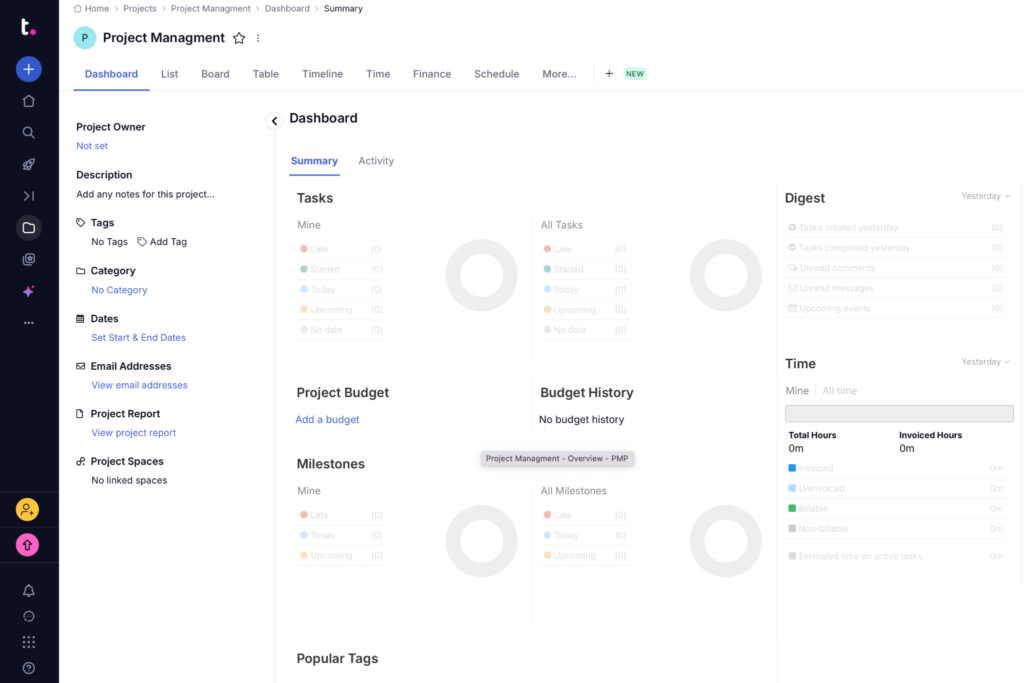
That is what makes it easier to place. If you run internal projects and mainly care about coordination, this may feel too operations-heavy. But if you manage agency work, consulting projects, or service delivery where deadlines, team capacity, and margins all move together, it fits much better. The capacity and utilization side is especially useful because it helps you see whether your team can actually take on more without overloading people. My main hesitation is that it feels more niche than others. It is most useful when projects involve clients, billable time, budgets, or utilization tracking. If your work does not include that side of project management, some of its best features may feel unnecessary.
Course Ratings Table
| Feature | Rating |
|---|---|
| Ease of Use | 8.6 |
| Planning & Scheduling | 8.9 |
| Workflow Customization | 8.4 |
| Team Collaboration | 8.5 |
| Resource Management | 9.2 |
| Reporting & Dashboards | 9.0 |
| Integrations | 8.2 |
| Admin & Scalability | 8.4 |
| Overall Value | 8.8 |
Package Options
- Basics: Planned vs. actuals, project health, time and status reporting, intake requests, 5,000 automations.
→ Best for small client-service teams tracking delivery and time. - Accelerate: Capacity and utilization, time budgets, retainers, smart intake routing, HubSpot, and QuickBooks connections.
→ Best for growing teams managing workload and billable work. - Optimize: Tentative planning, AI work assignment, profitability forecasting, multi-currency budgets, revenue and cost insights, and quotes.
→ Best for service businesses managing margins and future pipeline. - Enterprise: SSO, advanced security, dedicated success support, implementation help.
→ Best for larger service organizations needing tighter control.
Package Perks
- Planned vs. actuals
- Time tracking
- Timesheets
- Capacity planning
- Utilization reports
- Time budgets
- Retainers
- Project health
- Profitability forecasting
- Quotes
- Client organization
- Proofs
Pros
✅ Better For Billable Work: It is one of the few options here that really connects project delivery to time, budgets, and profit.
✅ Useful Capacity View: Utilization and workload planning make it easier to spot overbooking before it becomes a deadline problem.
✅ Stronger For Service Teams: Retainers, quotes, and client organization make more sense here than they would in a general PM tool.
Cons
❌ Not Great For Pure Internal PM: If there is no client, budget, or billable angle, part of the appeal drops off.
❌ More Operational Than Some Teams Need: Financial and utilization features can feel like extra weight if you just want project coordination.
❌ Higher Plans Matter More: A lot of the more helpful controls sit above the entry tier.
Bottom Line: Should You Choose Teamwork.com?
Teamwork.com makes the most sense for PMPs managing client delivery, where time, capacity, scope, and profitability all need to stay visible together. That is where it feels different. I would not use it for every type of project environment, but for agencies, consulting teams, and service-based work, it is a much more practical fit than a broader tool.
Teamwork.com
Zoho Projects: Best for Teams That Want More Control Than Flash
Zoho Projects covered a lot of the core things I would want for PMP-style project work. I was able to see features like Gantt charts, task dependencies, issue logging, timesheets, workload views, planned vs. actual tracking, budgets, custom fields, layouts, and workflow rules, so it did not feel bare or missing major structure tools. From that side, it gave me enough room to manage project tracking in a more organized and customizable way.
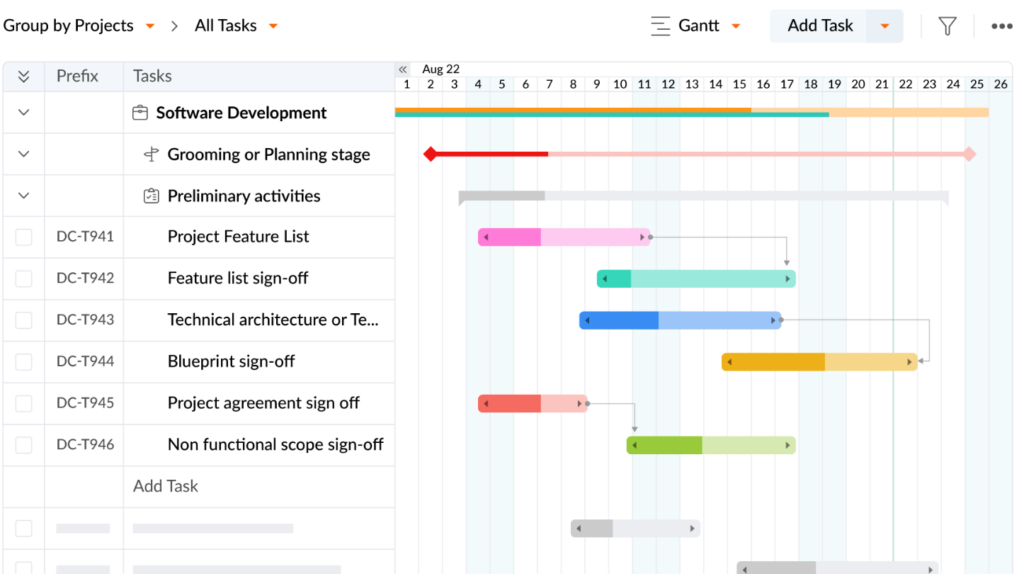
What lost me a little was in the overall experience. It felt more practical than polished. I could get why someone would use it, especially if they want strong tracking and process control without paying for a bigger-name platform, but it did not feel especially modern or smooth to move through. Compared to some other tools, it felt a little clunkier and less refined in the day-to-day workflow. I could see it working for PMP pros who care more about structure and control than design, but I do think teams that want a faster, cleaner, more polished experience may have a harder time warming up to it.
Course Ratings Table
| Feature | Rating |
|---|---|
| Ease of Use | 8.3 |
| Planning & Scheduling | 8.6 |
| Workflow Customization | 9.3 |
| Team Collaboration | 6.9 |
| Resource Management | 8.3 |
| Reporting & Dashboards | 8.9 |
| Integrations | 8.3 |
| Admin & Scalability | 8.5 |
| Overall Value | 8.4 |
Package Options
- Free: Basic setup for trying the platform.
→ Best for test runs only. - Premium: Core planning, tracking, and day-to-day PM tools.
→ Best for smaller teams that want more structure. - Enterprise: More control, reporting depth, and broader setup options.
→ Best for teams running more layered work. - Ultimate: Higher limits and more room across the system.
→ Best for larger teams that need scale.
Package Perks
- Gantt charts
- Task dependencies
- Issue tracking
- Timesheets
- Planned vs. actual reports
- Workload reports
- Custom fields
- Workflow rules
- Baselines
- Budget tracking
- Global dashboards
- Jira and MS Project imports
Pros
✅ Plenty Of Control: It gives PMs a lot of ways to shape projects around their own process.
✅ Solid Tracking Mix: Hours, issues, workload, and planned vs. actuals all make sense here.
✅ Good For Detailed Setups: It works better for teams that like to fine-tune how work moves.
Cons
❌ Not Very Sleek: The experience feels more serviceable than impressive.
❌ Takes More Settling Into: It is not the type of platform most teams instantly click with.
❌ Feels Dense: There is a lot packed in, and that can make it feel heavier than expected.
Bottom Line: Should You Choose Zoho Projects?
If I wanted a system with room to shape workflows, track progress closely, and keep project details in one place, I could see this working well. It felt more appealing from a function-first standpoint than from an overall user experience standpoint. The catch is that it did not feel especially smooth or modern while I was using it, so I think teams that care more about a polished, inviting platform might have a harder time sticking with it.
Zoho Projects
Smartsheet: Best for Spreadsheet-Style Project Tracking

Smartsheet puts the spreadsheet front and center, and that is really the whole personality of the tool. What stood out to me was being able to run projects in a grid that already made sense, then add Gantt charts, timelines, dashboards, formulas, forms, automations, and workload tracking without switching into a completely different kind of system. That made it especially useful for roll-up reporting, status tracking, and keeping a lot of moving pieces organized in one structured view.
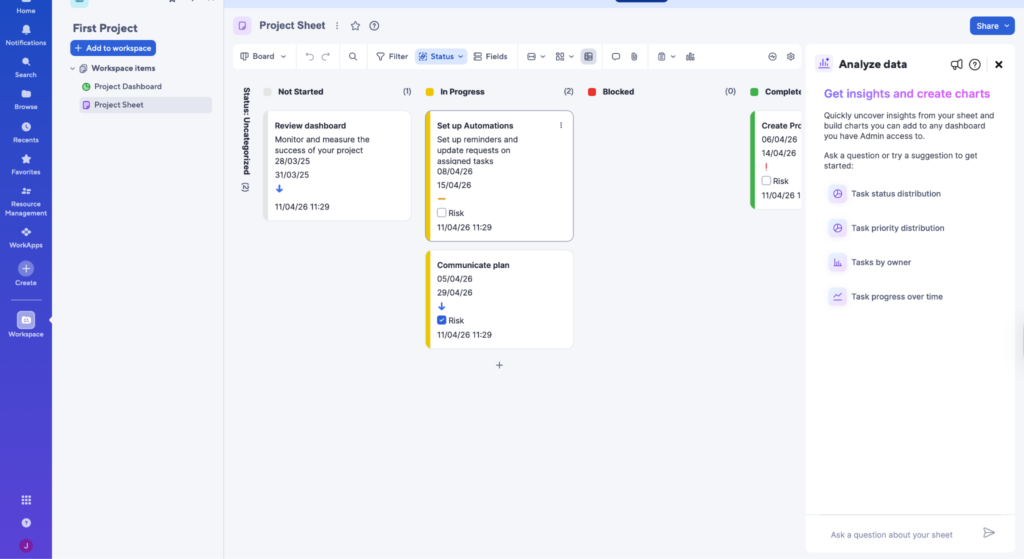
The drawback for me was that this same setup made the platform more rigid. It worked better for tracking and reporting than for natural day-to-day collaboration, and I think that difference matters. Compared with Zoho Projects, it came across as more tied to spreadsheet logic and less open-ended in how the workspace itself could be shaped. So yes, it can handle PMP-style planning and oversight, but it came across more like a tool people respect for structure than one they naturally enjoy working in.
Course Ratings Table
| Feature | Rating |
|---|---|
| Ease of Use | 8.0 |
| Planning & Scheduling | 8.4 |
| Workflow Customization | 7.8 |
| Team Collaboration | 7.2 |
| Resource Management | 7.9 |
| Reporting & Dashboards | 9.0 |
| Integrations | 8.1 |
| Admin & Scalability | 8.3 |
| Overall Value | 8.0 |
Package Options
- Pro: Core project views, formulas, reports, forms, and limited automations.
→ Best for small teams running structured project tracking. - Business: Timeline view, workload tracking, admin tools, and unlimited automations.
→ Best for teams managing multiple projects and shared capacity. - Enterprise: AI features, SSO, Work Insights, and broader control.
→ Best for organizations that need tighter governance. - Advanced Work Management: Control Center, Dynamic View, Data Shuttle, connectors, and premium support.
→ Best for large portfolio-heavy environments.
Package Perks
- Grid-based project sheets
- Gantt view
- Timeline view
- Board view
- Calendar view
- Formulas
- Forms
- Reports
- Workload tracking
- Automations
- Dashboards
- Control Center
Pros
✅ Spreadsheet Logic: It makes sense fast if you already manage work in sheets and reports.
✅ Strong Visibility: Dashboards, roll-ups, and milestone tracking are genuinely useful here.
✅ Good For PM Structure: Dependencies, automation, and workload tools give it real project depth.
Cons
❌ Less Human Feeling: It can come off more mechanical than collaborative.
❌ Not For Everyone: Teams that hate spreadsheets may never really warm up to it.
❌ Better Stuff Costs More: Some of the broader portfolio and system-level tools sit higher up.
❌ Can Feel Rigid: It is better at structured control than free-flowing teamwork.
Bottom Line: Should You Choose Smartsheet?
For PMP pros who want order, reporting, and project control in a format that stays close to a spreadsheet. I could more easily picture it working for teams that care most about roll-ups, tracking, and visibility than for teams that want a lot of personality in the platform. The downside for me is that it comes across a little dry. But if that sheet-based style already works for you, it can still be a really practical option.
Smartsheet
Adobe Workfront: Best for Enterprise Marketing Operations

Adobe Workfront is a lot more process-heavy than most of the tools above, and that is both the appeal and the problem. I liked that project intake, resource allocation, reporting, and project health are all pushed into one place, because it gives leadership a much clearer read on what is coming in, what is overloaded, and where work is slipping. But it also felt way more formal than I would want for a normal team setup, and that structure can start to feel like extra weight fast.
The dashboards, reporting, and workload side are probably the best parts, but even there, the tool still comes off pretty rigid. Compared to what I had with Monday.com, it is a lot less immediate and much harder to just jump into. So while it can work well for enterprise PM environments with heavier oversight, it also feels like the kind of system a lot of teams would struggle to enjoy using every day.
Course Ratings Table
| Feature | Rating |
|---|---|
| Ease of Use | 6.8 |
| Planning & Scheduling | 7.5 |
| Workflow Customization | 8.1 |
| Team Collaboration | 6.7 |
| Resource Management | 7.7 |
| Reporting & Dashboards | 9.0 |
| Integrations | 7.6 |
| Admin & Scalability | 8.3 |
| Overall Value | 7.1 |
Package Options
- Select: Core work management, intake, reporting, approvals, and collaboration.
→ Best for teams needing the main Workfront workflow. - Prime: Adds portfolio management, stronger security, fuller admin, and more support for enterprise controls.
→ Best for larger teams with more oversight. - Ultimate: Adds deeper automation and data management tools.
→ Best for enterprises connecting larger systems.
Package Perks
- Request intake forms
- Auto-routing
- Project templates
- Resource allocation
- Capacity planning
- Dashboards
- Custom reports
- Review workflows
- Digital proofing
- Audit trails
- Portfolio management
- Adobe integrations
Pros
✅ Strong Intake Flow: Requests, routing, and approvals are handled more formally than in most tools.
✅ Good Review Control: Proofing, approval paths, and audit trails are useful for regulated or content-heavy work.
Cons
❌ Too Much For Small Teams: Smaller or less structured teams may end up carrying features they do not need.
❌ Very Marketing-Specific: A lot of its stronger use cases revolve around campaigns, briefs, and creative approvals.
❌ Adoption Could Be Harder: The process-heavy setup is not something every team will want to live with daily
Bottom Line: Should You Choose Adobe Workfront?
Adobe Workfront fits better in a larger, process-heavy environment where intake, approvals, reporting, and resource visibility all matter at once. I liked that it gives leadership a clearer view of project health and workload, but it also looked way more rigid than most teams will want. If your work runs through formal review paths and a lot of stakeholders, it could work well. If you just need strong project management without all the extra process, it will probably feel too heavy.
Adobe Workfront
ProofHub: Best for Simple Team Visibility

ProofHub keeps a lot of day-to-day work in one place, and that is the clearest reason it would appeal to some teams. You get board, table, Gantt, and calendar views, along with discussions, chat, notes, files, forms, reports, time tracking, and proofing inside the same workspace. I liked that the setup looks easy to follow. The sidebar keeps everything close, so it seems simple to move between tasks, schedules, discussions, files, and reports without feeling lost.
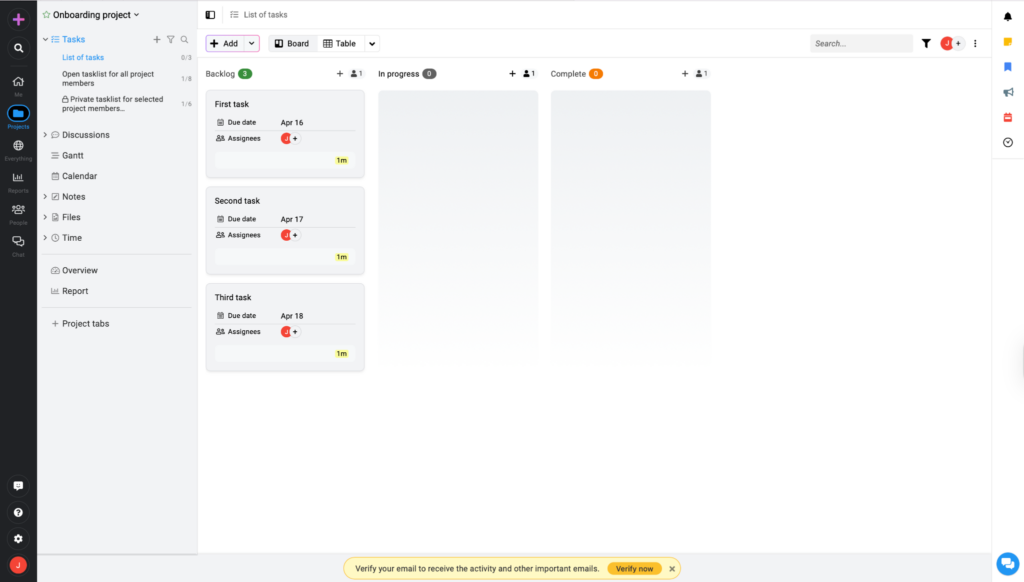
That said, the same simplicity is also where it starts to fall off. It looks better for keeping work visible and conversations together than for giving PMPs deeper control over planning, forecasting, or resource-heavy work. I do not really see much that points to stronger portfolio oversight or more advanced reporting depth. So while it seems practical for smaller teams that mainly need clarity, task tracking, and one place to stay aligned, I would be more hesitant with anything larger, more structured, or more complex.
Course Ratings Table
| Feature | Rating |
|---|---|
| Ease of Use | 8.9 |
| Planning & Scheduling | 7.3 |
| Workflow Customization | 6.9 |
| Team Collaboration | 8.0 |
| Resource Management | 6.1 |
| Reporting & Dashboards | 6.7 |
| Integrations | 6.3 |
| Admin & Scalability | 6.5 |
| Overall Value | 7.0 |
Package Options
- Essential: 40 projects and 15GB storage (Core features only)
→ Best for teams that just need the main workspace for tasks, discussions, files, and basic planning. - Ultimate Control: Adds unlimited projects, 100GB storage, plus custom roles, workflows, API access, and project/ resource reports.
→ Best for teams that need tighter admin control, more reporting, and more room to manage work at scale.
Package Perks
- Board view
- Table view
- Gantt view
- Calendar view
- Time tracking
- Forms
- Reports
- Discussions
- Files
- Chat
- Notes
- Proofing
Pros
✅ Easy To Follow: The layout looks clean enough that most teams could get moving without much confusion.
✅ Everything In One Place: Tasks, chats, files, notes, and proofing all live inside the same workspace.
Cons
❌ Pretty Light For PMP Work: It does not look especially strong in the areas where more advanced PM teams usually need depth.
❌ Weak Resource Side: I do not see much that suggests serious capacity planning or broader resource control.
❌ Limited Reporting Depth: Basic visibility is there, but not many points to deeper analytics or portfolio-level insight.
❌ Less Room To Grow: It seems fine when work is simple, but it’s easier to outgrow once projects get more layered.
Bottom Line: Should You Choose ProofHub?
ProofHub works best when the goal is to keep work, conversations, and files together in one place without making the team learn a complicated system. It’s clear, practical, and easy to run with. The issue is that it also seems easier to outgrow than most of the other tools. For smaller teams that want simple coordination, it could do the job. For PMPs managing more complex planning, reporting, or resource-heavy work, it probably will not go far enough.
ProofHub
Other Tools Worth a Look
These other project management options may work well for PMP pros, especially if you want something simpler to layer into your workflow.
Course Matchups: Tool vs. Tool
Monday.com vs. ClickUp
Monday.com had me moving faster right away. I could open it, scan what was due, see who was responsible, and get a quick handle on project status without doing much setup first. ClickUp gave me more ways to organize everything, but it also gave me more to manage. There was more customization, more built-in tools, and more decisions to make before everything looked clean.
Monday.com kept things clear from the start. ClickUp gave me more control once I got deeper into it.
→ Choose Monday.com if you want something easier to manage day to day
→ Pick ClickUp if you want more tools and more control in one place
Wrike vs. Asana
Wrike had more structure built into it. I could tell it was better suited for tighter oversight, stronger reporting, and teams that needed a more controlled process. Asana was easier to keep up with. I could move through projects faster, check progress quicker, and keep everything aligned without as much friction.
Wrike gave me more control over the process. Asana made daily coordination easier.
→ Choose Wrike if you need tighter oversight and stronger reporting
→ Pick Asana if you want cleaner coordination with less friction
Jira Software vs. Teamwork.com
Jira had me working in a more detailed way. It made more sense when priorities were changing, tasks needed to move through a clear workflow, and delivery needed closer tracking. Teamwork.com was more practical for client work. I could see how it lined up better for billable work, timelines, and keeping projects tied to service delivery.
Jira kept me closer to workflows and execution. Teamwork.com made more sense for client-facing work.
→ Choose Jira Software if you need tighter workflow control
→ Pick Teamwork.com if your work is built around clients and delivery
Zoho Projects vs. Smartsheet
Zoho Projects gave me more room to build things my way. I could customize workflows more, manage issues, and set things up in a way that looked closer to a traditional PM tool. Smartsheet was more structured from the start. I was looking at rows, tracking columns, and a setup that made reporting and roll-up views easier to manage.
Zoho Projects gave me more flexibility in setup. Smartsheet gave me more structure in tracking.
→ Choose Zoho Projects if you want more customization
→ Pick Smartsheet if you like a spreadsheet-style way to manage projects
Adobe Workfront vs. ProofHub
Adobe Workfront came across as the heavier platform. I was looking at more formal intake, approvals, resource planning, and the kind of reporting larger organizations usually need. ProofHub was much simpler. I could get into tasks, files, updates, and team coordination without dealing with nearly as much setup.
Adobe Workfront had more processes built into it. ProofHub was easier to manage for everyday work.
→ Choose Adobe Workfront if you need more formal control and planning
→ Pick ProofHub if you want something simpler and easier to run
How I Tested and Ranked These Tools
I ranked these tools by looking at how well they support the kind of work PMP-certified managers usually deal with: planning, scheduling, dependencies, reporting, coordination, resource visibility, and workflow control. I paid closest attention to what each platform actually seemed built to handle, not just how many features it listed. That meant looking at project views, reporting depth, intake flow, resource tools, approvals, customization, and how clearly the overall system fit a real project management workflow. I also weighed whether a tool looked easy to adopt, easy to outgrow, or too specialized for broader PM work.
Ranking Criteria Table
| Feature | Weight | What This Tests |
|---|---|---|
| Ease of Use | 15% | How easy it is to get a team using the platform without a lot of friction |
| Planning & Scheduling | 15% | Timelines, dependencies, milestones, and overall schedule control |
| Workflow Customization | 12% | How much freedom with statuses, fields, templates, automations, and layouts |
| Team Collaboration | 10% | How well teams can communicate, share updates, and stay aligned in the same workspace |
| Resource Management | 13% | Capacity, workload, utilization, time tracking, and staffing visibility |
| Reporting & Dashboards | 13% | Project health, executive visibility, status reporting, and trend tracking |
| Integrations | 10% | How well the platform connects with the tools teams already use |
| Admin & Scalability | 15% | Permissions, governance, security, and whether the tool can support larger environments |
Final Verdict
So which one is the best? That depends on what kind of work you’re managing and how much structure your team actually needs.
Not a PMP yet? Get your PMP certification using one of the top PMP prep courses to be on your way to using one of these tools as a project manager.
Monday.com is my top pick overall because it strikes the best balance between clarity, ease of use, and day-to-day project visibility. It keeps work organized without making the process feel harder than it needs to be. ClickUp is a stronger fit for deeper control, Wrike works better for tighter oversight, Asana is great for smoother team coordination, and Jira stands out for Agile workflows. In the end, the best tool is the one your team will actually use well.
FAQs
Look for strong planning tools, dependency tracking, reporting, resource visibility, and a setup your team will actually use.
Not always. It depends on project complexity, team size, and how much oversight the work needs.
No. Some are better for keeping multiple teams aligned, while others work better for one department or one workflow.
Monday.com is a strong pick for most small teams because it is easy to manage and quick to learn. Asana is also a good option for smoother team coordination.
Jira Software is one of the best fits for Agile PMP workflows, especially when backlog control and changing priorities matter. ClickUp is also a strong option if you want more flexibility.