iOS App eEdition User Guide and FAQ
The eEdition is a digital replica of the print newspaper that also contains bonus content and is available only to subscribers. You can access it directly in the iOS mobile app. This page is a guide to help you navigate the eEdition and get the most out of its features.
Visual Overview
Latest View
Library View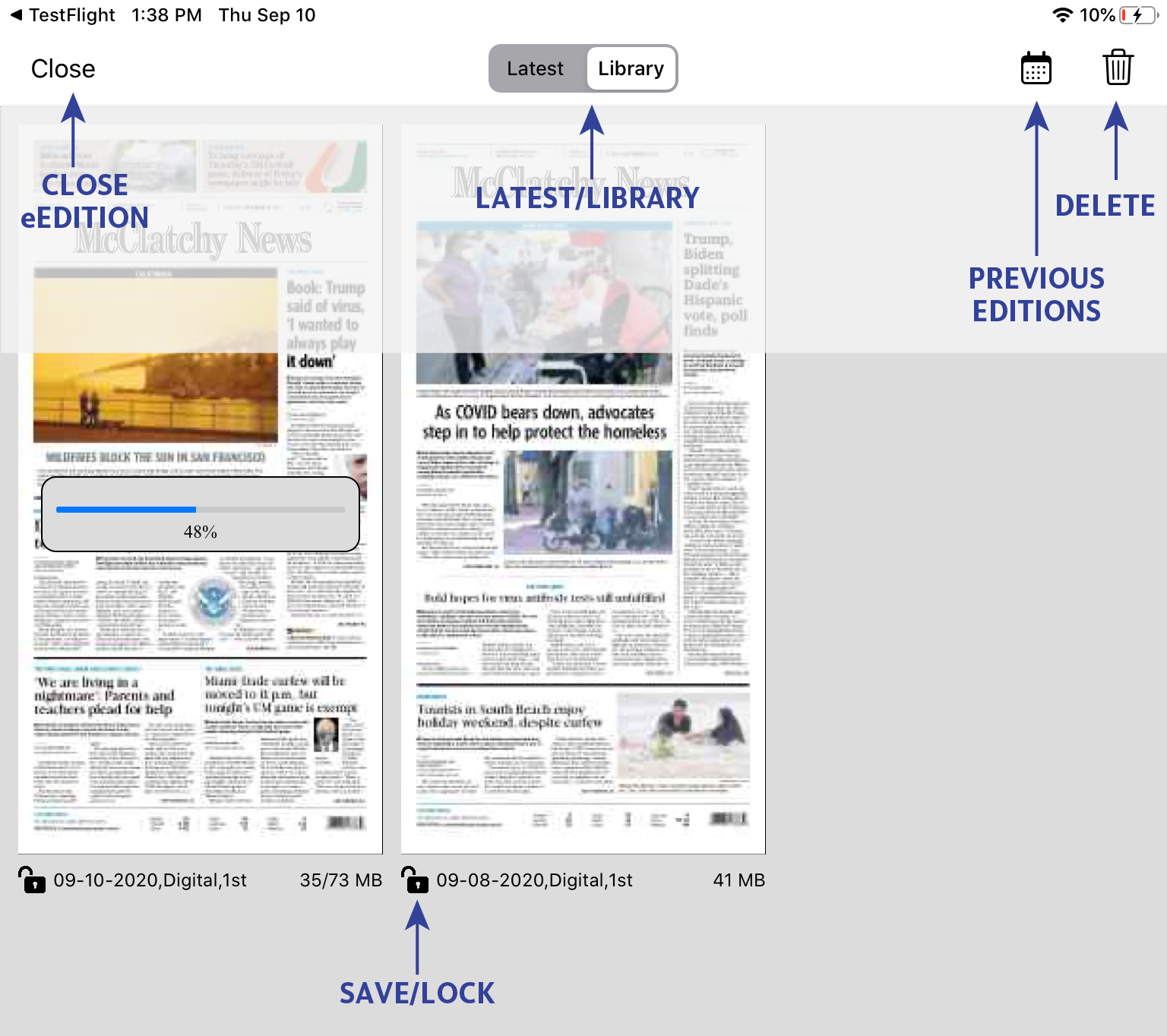
Frequently Asked Questions
How do I launch the eEdition from the app?
To launch the eEdition from the app, tap the icon at the top of the app home screen. The eEdition viewer will launch in Latest view, showing today's paper. Tap Close to close the eEdition viewer and return to the main app.

How do I zoom in and out?
To zoom in and out, there are four options:
- Pinch and spread to zoom in and out.
- Double-tap on the area you’d like to zoom in to; double tap again to zoom out.
- Tap on a story to read it in article view mode.
- Tap the icon in the bottom right to toggle full screen mode. The other zoom functions also work in full screen mode.
How do I jump to a specific section of the paper?
To jump to a specific section or page, there are three options:
- Swipe left or right in the navigation bar near the top of the eEdition viewer to find the desired section, then tap it.
- Tap on the icon in the bottom right of the eEdition viewer and swipe up or down to find the desired section or page and tap it.
- Tap on the icon in the top right of the eEdition viewer to see all the pages across the bottom of your screen and swipe left or right to the desired section or page and tap it.
How do I find a list of stories in a specific section?
To see a list of stories, click on the icon in the eEdition viewer.
How do I find older editions of the paper?
To view and save previous editions, tab Library at the top of the eEdition viewer. In the Library, you will see editions from the previous three days by default. Tap any of these to read them. Editions older than three days are automatically removed unless they are saved by tapping the icon. All editions saved in the Library are available to read offline.
To find and save editions from the previous two weeks, tap the icon in the top right in the Library view. Choose a date and tap the Download Issue button to save that day's paper to your device. Please be aware that each edition takes up a small amount of space on your device (the exact size is noted at the bottom right of each edition in the Library). Once you have saved an edition, it will show up in your Library as locked. When any paper older than three days is unlocked (by tapping the icon), it will be removed from the Library the next time you launch the eEdition viewer.
How do I save the paper to read offline?
By default, your device will automatically save the previous three days' newspapers. You can find them in the Library. All editions saved in the Library are available to read offline. To make sure you will have today's edition to read offline later, launch the eEdition viewer while you are still online and it will download automatically. To save an edition from more than 3 days ago, see How do I find older editions of the paper?
How do I print or download a page or part of a page?
To print or download a page or part of a page, such as the crossword, tap on the icon at the top of the eEdition viewer. Tap and drag the corner markers in the bounding box that appears over the image to crop the portion you want and then tap the share icon. Your device's default share menu will appear with different options, including copy, save image or share. To print, select Print and follow the prompts. (You must have a wireless printer connected to the same network as your device to use this feature.)
How do I delete saved editions?
To delete editions, tap Library at the top of the eEdition viewer. Tap the icon in the top right and tap each edition you want to delete (selected editions will have a checkmark on the top left corner). Once you have chosen the editions you want to delete, tap Delete in the top left of the viewer. Please note that locked editions can be deleted from this screen without unlocking them first. To cancel deleting, tap Cancel in the top right.
How do I configure the eEdition so that it shows a single-page view when my iPad is in landscape mode?
The eEdition cannot be configured to show a single-page view when your iPad is rotated to landscape at this time. You may, however, use the pinch-to-zoom gesture to magnify the size of the content. Also, if you rotate your iPad to portrait view, it will display in single-page view by default.
I'm used to downloading PDFs of the eEdition. How do I do that now?
The new eEdition downloads a copy of the paper for you automatically. To view the download, tap the "Library" button in the top bar. In this new view, you'll see all the issues currently saved to your device. Issues are automatically deleted after 3 days. To save issues, tap the unlock button below each issue's thumbnail image. If you prefer downloading PDFs to be read in the Books app or other PDF reader apps, visit our website in your mobile web browser, tap the eEdition button, then tap the download button in the top bar. To move the PDF from the web browser to another app, tap the share button and pick the app of your choice in the share modal.
How do I share articles from the eEdition?
The new eEdition does not support article sharing at this time.
I'm having trouble logging in. What should I do?
If you're having problems accessing the eEdition from the app, please contact customer service by sending an email to customerservice@miamiherald.com or calling 305-350-2111.
I need something else. How do I get help?
For any other problems, please contact customer service by sending an email to customerservice@miamiherald.com or calling 305-350-2111.